

Mio Fuse Heart Rate, Sleep + Activity Tracker
Product Description
Mio Fuse Heart Rate, Sleep + Activity Tracker
- Get accurate wrist-based heart rate during exercise.
- Track all day activity, including sleep, steps, calories, distance, pace & goal. Tracking sleep requires a simple software update.
- Sync wirelessly via Bluetooth Smart (4.0) to popular fitness apps.
- Works exclusively with Mio PAI app (Personal Activity Intelligence).
- Water resistant up to 30m (3 ATM / 100 ft.)
- To add sleep tracking, easily update your firmware via Mio GO app.
- For Mio product support, please contact 1-877-770-1116 (Mon-Fri: 9am to 5pm PST). Please refer user manual attached below for instructions and troubleshooting steps.
- How do I pair my Mio device to an app like Strava, MapMyRun, Endomondo, RunKeeper or any other 3rd party smartphone app? A: Make sure that your smartphone is compatible, and follow the steps below! 1. Take both your smartphone and Mio device to a place at least 30m (100 feet) away from any other Bluetooth devices. 2. Turn on heart rate monitoring on your Mio device, and place your Mio device within 1 meter (3 feet) to your smartphone-the closer the better! 3. Make sure Bluetooth is enabled on your smartphone. For iPhones, go to Settings > Bluetooth, and make sure that Bluetooth is 'On'. For Android phones, open the Bluetooth settings menu on your device and enable the setting that makes your device visible to other Bluetooth devices. Note: Pairing must be completed within the app settings, and not in your smartphone's Bluetooth settings. Make sure that Bluetooth is enabled, but don't connect anything directly within the Bluetooth settings! 4. Open the app that you would like to pair with and add your Mio device as a heart rate sensor. The setup process varies by app, but the option to add a heart rate sensor is typically found in the Settings menu. Repeat the above pairing process any time you use a new app. After initial pairing is complete, your Mio device will automatically be recognized each time you use that app. Troubleshooting tip: Your Mio device can't connect to more than one app at a time. If an app can't find your Mio device, make sure to force close any heart rate monitoring apps (including Mio GO) that may be running in the background.
- How to get the most accurate HR reading Picture this: you're getting ready to head out for a workout. You turn on your heart rate monitor, and you can't find your heart rate. No, you're not dead; your heart rate monitor could just be having a bit of trouble getting a reading. Your Mio heart rate monitor uses the industry's most accurate technology, but there are a few steps you can take to make sure your heart rate reads loud and clear every time. First, just try turning off heart rate mode and restarting. If that doesn't work, try these 5 easy things to get an accurate heart rate reading before you start working out. 1. Keep it clean If the sensor on your Mio is dirty, it can cause problems. Keep it clean by washing regularly with a wet cloth or by running it under water quickly after each use. Just be sure to dry it off after. 2. Wear it high Fasten the device about 1-3 inches (3-8 cm) above your wrist bon 3. Cinch it up If light gets in, your Mio won't work well. Tighten the strap so that the optical sensor on the back makes good contact with your skin. 4. Warm up If you have cold hands or poor circulation, this one's especially important. Get some blood moving before you get started, and you'll get a better reading. 5. Hold still If you're moving around, it's difficult for your device to get an initial heart rate reading. Hold still until your heart rate displays, then get moving. Keep these 5 simple tips in mind next time you're heading out for a workout or trying to track your heart rate.
- What should I do if my workout memory is full FUSE stores 30 hours of workout data, after which time it will show 'NO MEM" on the display. You can clear your FUSE memory by syncing to the Mio GO app. If you have trouble clearing your memory, please try the following: ANDROID -Restart phone -Open Mio GO and drag down on the Activity History Screen (you may have to drag down more than once in order to sync all data) IPHONE - Close Mio GO completely by swiping it from the running apps screen -Open the iPhone Bluetooth menu and make sure nothing is connected with the Mio name (MioFUSE/MIOup1.8 for example) -Re-open Mio GO and drag down on the Activity History Screen (you may have to drag down more than once in order to sync all data)
The Mio FUSE has all the features you want in a fitness tracker paired with the engineered precision of Mio Heart Rate Technology. Mio FUSE takes your performance and training to a whole new level. Not only can it monitor your heart rate with peak accuracy during workouts, but it also tracks your steps, calories, distance, pace, and goal progress throughout the day.
Mio FUSE
FREQUENTLY ASKED QUESTIONS
How do I choose the right size?
Mio FUSE is available in two sizes. Size Small/Medium fits wrists 5.8" - 7", Size Large fits wrists 6.1" - 8.2".
Question not answered here? The Mio Support Team is happy to help you out; send us an email us any time at [email protected], or call us at 1-877-770-1116 (Mon-Fri: 9am to 5pm PST).
Do I need a smartphone to use FUSE?
To configure and sync FUSE you'll need the Mio GO app, which is available for iOS and Android smartphones. FUSE is compatible with the following devices:
IOS: iPhone 4S and higher, iPod Touch 5th gen.
Android Devices: HTC One (OS v4.3+) & M8, LG G2 & G Pro2, Motorola Moto G, Moto X, Droid RAZR M, RAZR Maxx HD, Droid Ultra, Maxx, Mini (OS v4.4+), LG Nexus 4, 5, 7, Samsung Galaxy S3, S5, S5 Mini, S4, S4 Mini, Note 2, Note 3, Note 10.1, Sony Xperia Z, Z1, Z1 Compact, Ultra, ZR, ZL, Sony Xperia SP, V.
FUSE cannot be synced to or be configured with a Windows phone, Blackberry device, desktop computer, or laptop.
What should I do if I'm getting inaccurate heart rate readings?
Inaccurate readings are usually caused by poor contact between the heart rate sensor and your skin. Make sure that FUSE has a snug fit on your forearm, about 2 finger widths above your wrist bone. If you have a very small wrist, wear FUSE higher on your forearm. You can also try wearing FUSE on the inside of your arm.
What apps can I use with FUSE?
You can only configure and sync data from FUSE with the Mio GO app, but you can transmit heart rate directly to any app that syncs with Bluetooth Smart (4.0) heart rate sensors.
Some popular apps include: Strava, MapMyRun, RunKeeper, Endomondo, Wahoo Fitness, Pear Sports, and DigiFit.
Connect FUSE as a heart rate sensor through the settings of the app you'd like to use.
Can I transmit heart rate from FUSE to exercise equipment?
FUSE transmits heart rate using Bluetooth Smart (4.0) and ANT+ heart rate profiles to equipment such as bike computers, GPS watches, treadmills, rowing machines, and more.
To see if your device/equipment is compatible, look for a Bluetooth 4.0 or ANT+ logo, or view your product's Specifications section on the Mio Global website for a full list of brands and models.
Technical Specifications
You might also like
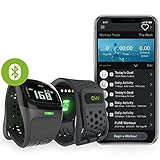
Mio Alpha Heart Rate Monitor Sports Watch
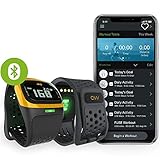
Mio ALPHA 2 Heart Rate Watch + Activity Tracker
Mio 60P-BLK-SMA Slice Heart-Rate-Monitors, Black, Small
Scosche Rhythm24 - Waterproof Armband Heart Rate Monitor
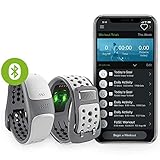
Mio LINK Heart Rate Monitor Wristband, Small/Medium, Arctic
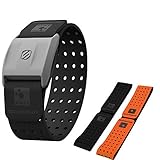
Scosche RHYTHM+ Heart Rate Monitor with Armband, Black

Garmin vívosmart HR Activity Tracker Regular Fit - Black
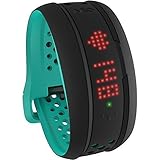
MIO GLOBAL FUSE ACTIVITY TRACKER w/ HEART RATE MONITOR AQUA SMALL/MEDIUM
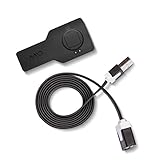
Mio Fuse Charging Pack