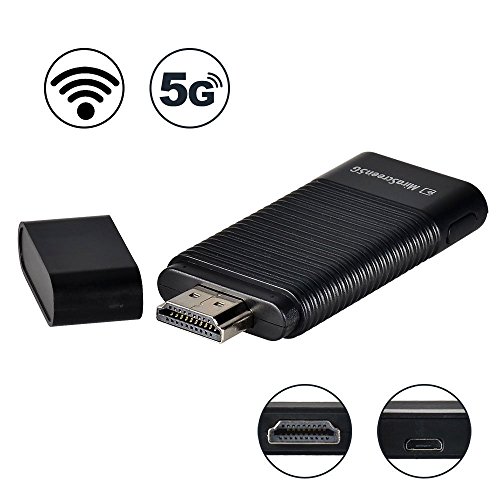
MiraScreen 5Ghz WiFi Display Dongle 1080P HDMI Converter Streaming Stick Support MiraCast AirPlay DLNA
Product Description
MiraScreen 5Ghz WiFi Display Dongle 1080P HDMI Converter Streaming Stick Support MiraCast AirPlay DLNA
- WIRELESS HDMI DONGLE:dual band 2.4/5G wlan, screen mirroring (Video, Game, Picture, App and File) from your smartphone/tablet/MAC/PC to TV/display/projector via HDMI
- GREAT COMPATIBILITY: 1080P miracast dongle could support most device which with IOS 9.0+, Android 4.4+ and Windows OS (only Miracast enable Windows device)
- EASY SETUP: wireless display adapter no need driver/APP installation and only 3 steps for setup: plug tv dongle to HDMI port on display; connect wifi and configure; add wireless display receiver into Home WiFi; choose Miracast(Android/Windows) or Airplay(IOS) Mode
- MULTIUSAGE: streaming media player, like carplay dongle, could cast video/GPS nevigation from your device to car display screen. Widely used in business conference, education, home theatre, game experience etc.
- NOTE: wireless display dongle support most video websites(app or online)- YouTube, Facebook, Twitter... Not compatible with the app that requires copyright, like Netflix/ iTunes/ Amazon Video/ HBO go/ Hulu Plus/ Honda Motor/ ESPN/Google Pixel
Function of the Button on Dongle
1. Mode Switching: Switch between AirPlay(default) and Miracast Mode
2. 2.4GHz/5GHz WiFi Switching: Press 5 seconds for changing the WiFi frequency band
How to connect:
1. Plug the Dongle to HDMI port on TV/Projector/Monitor
2. Connect the USB cable to power adapter(at least 5V/1A)
3. The Mirascreen main page will be displayed on your TV/Projector/Monitor, then
For iOS device connection, please follow the steps below:
Step 1. Go to phone "Setting" - "WiFi" - connect the Mirascreen dongle network (Get SSID and password on screen.)
Step 2. Swiping up "Control Center" and Turn on "Airplay"
Step 3. Choose the MiraScreen dongle and enable "Mirroring" to start mirroring
For Android device connection, please follow the steps below:
Step 1: Switch to Miracast mode by pressing button on the dongle
Step 2: Find the Miracast function on your Android device (such as screen mirroring/Miracast/smart view) and turn on
Step 3: Establish Miracast connection between Android device and MiraScreen.
Connect to WiFi Router
Step 1: Switch to Airplay mode by pressing the button, and get the IP address from MiraScreen main page on screen
Step 2: Establish the connection between MiraScreen and the device (Mac/Android/iOS/Windows) via WiFi
Step 3: Use the browser on your device (Mac/Android/iOS/Windows) to access the IP address , and select your WiFi router
Step 4: Enter password and connect to your WiFi router
Attention: If the dongle is in mirroring condition before connecting to WiFi , please turn off mirroring(Airplay/Miracast/DLNA) and go back to step 1
What's in the package:
1 x MiraScreen 5G dongle
1 x 2 in 1 cable(WiFi antenna/USB)
1 x Manual User