

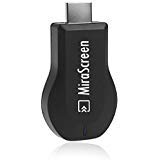
Superwang MiraScreen Dongle 1080P HDMI AV Adapter Cable for Connect Samsung Galaxy S6 S7 S8 Plus Note 8/5/4/3 iOS Apple iPhone iPad Tablet PC to HD TV
Product Description
Superwang MiraScreen Dongle 1080P HDMI AV Adapter Cable for Connect Samsung Galaxy S6 S7 S8 Plus Note 8/5/4/3 iOS Apple iPhone iPad Tablet PC to HD TV
- ✾✾✾Enjoy your video on the big screen!
- ✾✾✾Supports Car HDMI, Wireless phone connected to the Car display.
- ✾✾✾Supports Miracast(Android, Windows), DLNA and Airplay(iOS). (Android above 4.4 and up to IOS 11)Wi-Fi: 802.11b / g / n 2.4GHz Wireless WiFi 150Mbps. (with External WiFi Antenna to provide 10M WiFi Signal Coverage)
- ✾✾✾E-learning, business meeting: Wireless Display, from out of the shackles of cable, the meeting has become intelligent and efficient.
- ✾✾✾Attention: 1. The dongle must be powered by external power adapter(at least 5V/1A ). 2. Not Compatible with Netflix,HBO go, HULU and Honda motor. 3. Please check whether your Android smart device supports MiraCast(if not, it not works).
AirPlay Mirroring for iOS (iPhone/iPad)
Please follow below steps to setup MiraScreen:
Step 1: Connect WiFi cable (micro USB head) to MiraScreen dongle.
Step 2: Plug the MiraScreen dongle into the HDMI port of your TV and switch to the right input source.
Step 3: Plug USB cable into an external USB power adapter.
Step 4: Display MiraScreen Main Page.
AirPlay Mirroring for iOS (iPhone/iPad)
Step 1: Switch to Airplay mode by pressing button
Step 2: Get SSID and password on screen
Step 3: Establish WiFi connection between iOS device and MiraScreen.
Step 4: Turn on Airplay and select MiraScreen's SSID.
Then start mirroring.
MiraCast Mirroring for Android:
Step 1: Switch to Miracast mode by pressing button
Step 2: Miracast mode ready
Step 3: Find the Miracast function on your Android device (such as screen mirroring/Miracast/smart view).
Step 4: Establish Miracast connection between Android device and MiraScreen.
Setting and Firmware Upgrade
After connected with MiraScreen, an IP address will be shown on setup screen. Please use browser on your devices (iOS/Androd/Mac/Windows etc.) and then enter the IP address accordingly (ex: 192.168.203.1)
Internet: Setup the router connection for your MiraScreen. (Note: The connection between MiraScreen and your device may be disconnected when you switch to router connection)
Language/Password(Change the password of MiraScreen)/ Default Mode/Resolution/
Upgrade: upgrade the firmware of MiraScreen. (Required in Internet connection) IMPORTANT! Please upgrade to the latest version in order to compatible with up-to-date devices.
Specification
What's in the package:
1 x MiraScreen dongle
1 x WiFi antenna
1 x Manual User
Technical Specifications
You might also like
Sunday 1080P HDMI AV Adapter Cable for Connect Samsung Galaxy S6/S7/S7 Edge to HD TV

SmartSee MiraScreen Miracast Dongle Wireless Display Adapter HDMI TV Stick Screen Mirroring for Tablet Smartphone
Yinguo Micro USB To HDMI Converter Cable 6.5 Feet 1080P HDTV Adapter for Samsung Galaxy S5 S4 S3 Note 3 (N5100 N9000 N9006) Note 8.0 Note 2 HTC LG Sony Android Phone (Not for Galaxy S6 S7 S7 Edge S8)

Foseal 6.5 ft Special Shape 11Pin Cord Micro USB to HDMI Cable 1080P HDTV Adapter for MHL-Functioned Samsung Galaxy S5 S4 S3 Note3 Only-Fit Specific Phone Models Stated in Ad Description Page
MiraScreen Wireless Display Dongle Screen Mirror 1080P HDMI Adapter TV Stick Support Miracast DLNA Airplay Free Installation (no APP, no driver) TV Dongle for all smartphone FBA SHIPPING GENUINE GOODS
Mirascreen DLNA Airplay Miracast WiFi Display Dongle Receiver, HDMI 1080P TV Stick for Streaming Video, Web Surfing, Photo Viewer, Live Camera Sharing

Efanr 6.5ft Micro USB to HDMI Adapter Cable 1080P HDTV for Samsung Galaxy S2 S3 S4 S5 Note 2 3 4 8 Galaxy Tab 3 8.0, Tab 3 10.1 Android Devices, Not Compatible with Galaxy S6, S6 Edge, S7 Edge, S7, S8
Wifi Display Dongle Miracast DLNA Airplay Wireless display HDMI adaptor TV Stick dongle for iPhone Android IOS

HDMI Adapter for iPhone/Android, ZIKO 2m/6.5ft Lighting to HDMI Adaptor Micro USB to HDMI Cellphone Screen to TV/Projector/Monitor Adapter Cable 1080p High Definition for IOS and Android devices